Overlays
Each overlay has its own settings. Open them with the Settings button on the overlay's toolbar.
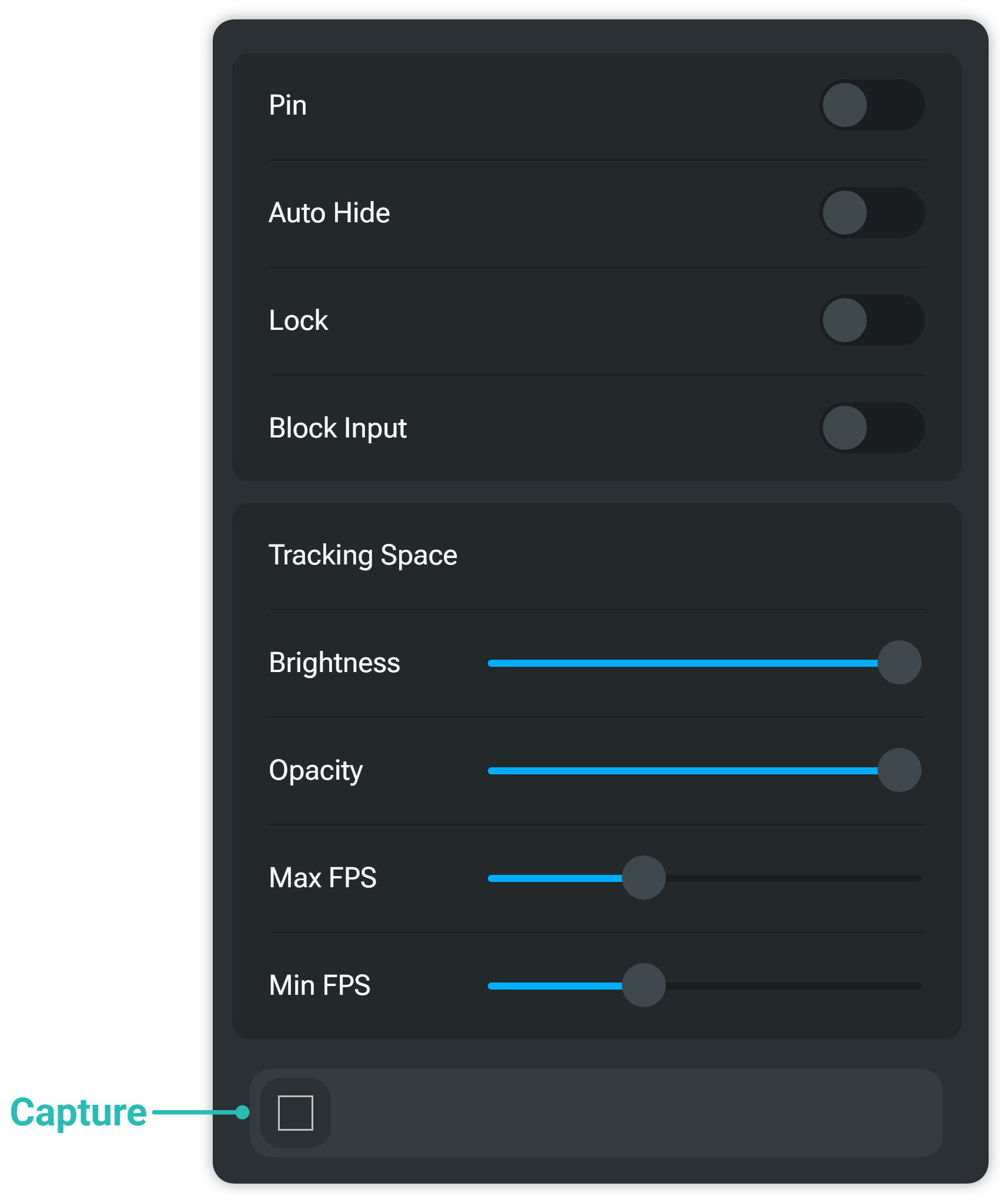
Modifiers
Pin
Keeps the overlay visible when Layout Mode is closed.
Auto Hide
Hides the overlay when you look away from it, based on the Overlay Clip Angle, similar to the wrist overlay.
Lock
Prevents all interaction with the overlay, including grabbing and clicking.
Block Input
Prevents mouse input on the overlay.
Settings
Tracking Space
What the overlay is attached to.
- World: stays in place in your play space.
- HMD: follows your head.
- Right Controller / Left Controller: follows that controller.
Brightness
How bright the overlay is.
Opacity
The overlay's opacity.
Max FPS
The frame rate the overlay updates at while active.
Min FPS
The frame rate the overlay updates at while inactive.
Capture
The window or monitor this overlay shows. Select it to pick another; the Windows button on the overlay's toolbar opens the same list.